Verification
Confirming your Vercel setup is fully working before Project 1 submission — account, deployment, environment variables, and live URL check.
Before you submit Project 1, run through this checklist. Each item takes less than a minute to verify. Don't skip it — a site that works on your laptop but fails on Vercel is not a submitted project.
Checklist
Account & Connection
- Vercel account created — You can log in at vercel.com
- GitHub connected — When you click "Add New" → "Project", your GitHub repositories appear in the list
- Hobby plan active — Check Vercel dashboard → Settings → Billing. It should say "Hobby" with no credit card required
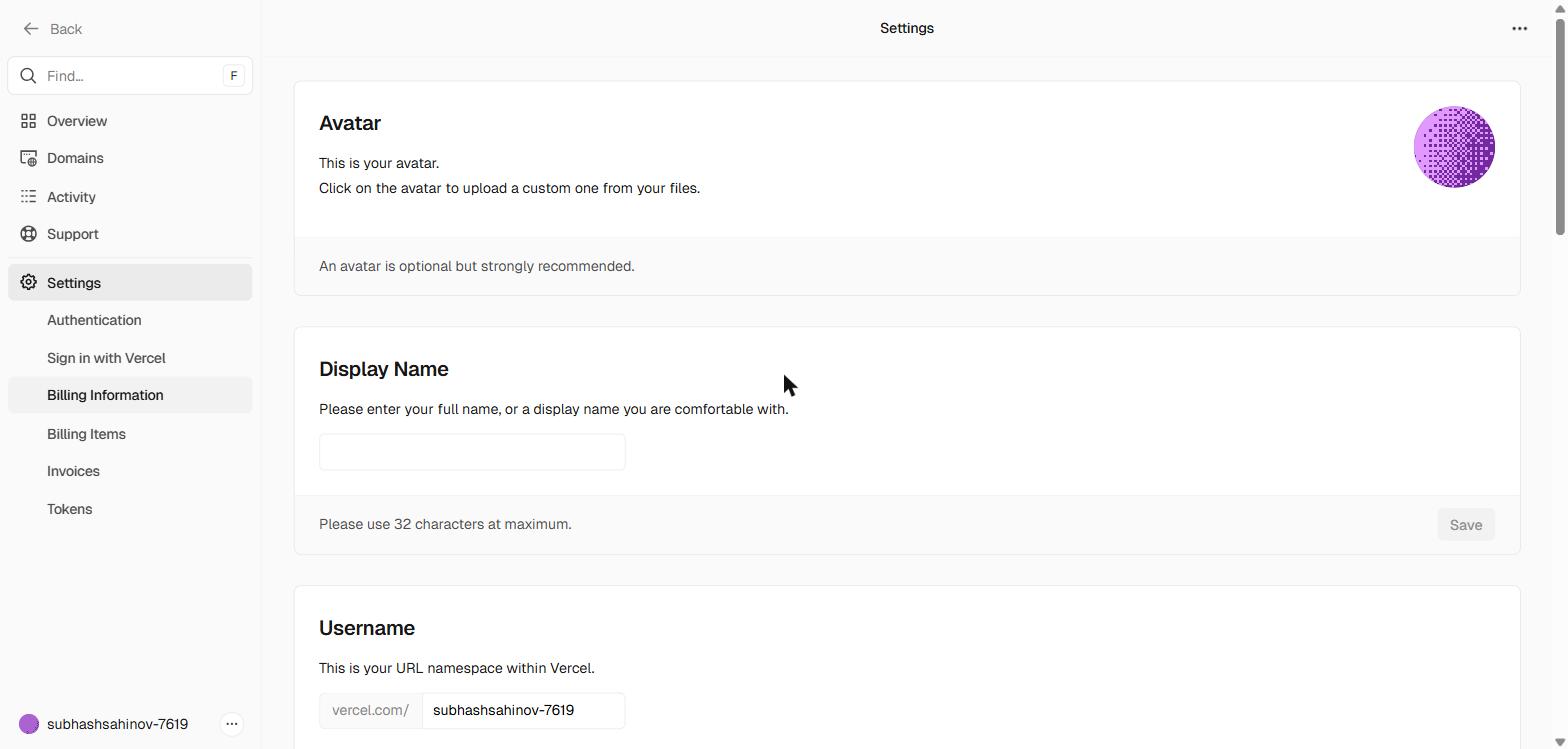 Your Billing page should look like this — plan: Hobby, no card on file, no charges. If you see anything else (Pro, an invoice, a payment method), you're on the wrong plan.
Deployment
- Project deployed — Your project appears in the Vercel dashboard under Projects
- Latest deployment is green — The most recent item in the Deployments tab shows a green "Ready" status, not red "Error"
- Live URL works — Click "Visit" on the project card. Your site opens in a new tab and displays correctly
Environment Variables (if your project uses Supabase)
- Variables added — Project → Settings → Environment Variables shows
NEXT_PUBLIC_SUPABASE_URLandNEXT_PUBLIC_SUPABASE_ANON_KEY(or the Vite equivalents) - All three environments checked — Each variable has Production, Preview, and Development checked
- Re-deployed after adding variables — The deployment timestamp is after the time you added the variables
Live Site Behaviour
- No red errors in browser console — Open your live URL →
F12→ Console. Zero red error lines - Core features work — Navigate through your site: every page loads, no blank screens, no broken layouts
- Mobile view works — Open the live URL on your phone. The site is readable and usable on a small screen
- HTTPS is active — The browser shows a padlock icon next to the URL. The URL begins with
https://, nothttp://
F12 to open DevTools and go to the Console tab. Confirm there are zero red lines. If you see errors mentioning undefined or supabaseUrl, go back to the Environment Variables page — a key was not saved correctly or the redeploy was skipped.Auto-Deployment Test (the most important verification)
This confirms the end-to-end workflow — not just that the site is deployed, but that the push-to-deploy pipeline is working.
Make a small visible change in VS Code
Open your project. Find a heading or paragraph of text. Change one word. Something you'll immediately notice when the page loads.
Save, commit, and push
In VS Code, save the file. Open the Terminal panel (Ctrl + backtick) and run git add . then git commit -m "test: auto-deploy verification" then git push.
Watch the Vercel dashboard
Open your Vercel project → Deployments tab. Within 10–30 seconds, a new deployment row should appear with a spinning indicator showing it's building.
Wait for the green checkmark
The deployment takes 60–90 seconds. When the spinning indicator turns green, click "Visit".
Confirm the change is live
Your text change appears on the live site. If it does — the full pipeline is working. Every future push to main will go live automatically without any manual action.
Ctrl + Shift + R (Windows) or Cmd + Shift + R (Mac) to bypass the browser cache.If the new deployment doesn't appear within 60 seconds of pushing: Check that you pushed to main specifically (not a different branch name). Also confirm Vercel's GitHub connection is active — Project → Settings → Git → check that the repository and branch are correctly set.
Submitting Your Project 1 URL
When submitting Project 1, provide two URLs:
- The live Vercel URL — e.g.,
https://my-personal-site.vercel.appor your custom domain - The GitHub repository URL — e.g.,
https://github.com/yourusername/my-personal-site
Subhash will:
- Visit the live URL and test it on desktop and mobile
- Open the GitHub repo and read the commit history
- Check that the latest commit matches what's live on Vercel
A project where the GitHub repo is two commits ahead of the live site (meaning you forgot to push the final changes) is an incomplete submission. The auto-deployment test above ensures this cannot happen if you run it last.
Troubleshooting Common Issues
"My repo doesn't show up in Vercel when I click Import"
Vercel doesn't have permission to access that repository. Click "Adjust GitHub App Permissions" in the import screen, or go to your GitHub account → Settings → Applications → Vercel → and grant access to the missing repository.
"The build succeeds but my site is a blank white page"
Almost always an environment variable problem. Open browser DevTools → Console. You'll see a specific error. If it mentions a URL or undefined, follow the environment variables page to add and redeploy.
"I can access the site but login/signup doesn't work"
Your Supabase URL or anon key environment variable is wrong. Open Supabase → Project Settings → API and verify the values match exactly what's in Vercel → Settings → Environment Variables. Small mistakes matter — one wrong character breaks the connection.
"The auto-deployment test: I pushed but Vercel didn't re-deploy"
Check: (1) did you push to main? (2) is Vercel connected to the right repository? Go to Project → Settings → Git and verify the GitHub repository and production branch are correct.
"The site works on desktop but looks broken on my phone"
This is a CSS/responsive design issue, not a Vercel issue. Your code needs responsive styling (Tailwind breakpoints, meta viewport tag in HTML). Vercel serves the same files to all devices — how those files display is determined by your CSS.
You're Ready
If every checkbox above is ticked and the auto-deployment test passed, your Vercel setup is fully working.
From this point forward, your deployment workflow is permanent and automatic:
You will not think about deployment again. Vercel handles it. Your attention stays on building.
The next sections cover building your actual projects — where everything you've set up here becomes the foundation you build on.