Role 6: DevOps / Infrastructure
Makes sure the app is always accessible, always backed up, and deployable without fear.
The Excel Analogy
The DevOps journey maps directly to something most professionals have lived through: the evolution from local files to shared infrastructure.
You have built a beautiful, complex Excel model. Formulas are correct. Layout is professional. The client loves it. There is one problem: it lives on your laptop. You close your laptop at 6pm. The client tries to access it at 8pm. They cannot.
So you put it on a shared network drive. Now the client can access it — but only when they are in the office. Their colleague working from home cannot.
So you move it to Google Drive. Now anyone can access it from anywhere, at any time, from any device. If your laptop dies tomorrow, the file is safe. You can roll back to yesterday's version if something goes wrong today. Multiple people can see the current version without getting confused about which copy is "real."
That entire process — moving from "it works on my machine" to "it works reliably for everyone, everywhere, always" — is what DevOps does for software.
What This Role Manages
Version control (Git + GitHub)
- Every change is tracked. You can see what changed, who changed it, and when.
- If something breaks, you can go back to the last working version.
- Multiple people can work on the same codebase without overwriting each other.
- It is the shared network drive — but with full history, branching, and collaboration built in.
Hosting and deployment (Vercel)
- Your app lives on Vercel's servers, not your laptop.
- Available 24/7, accessible from anywhere, on any device.
- When you push new code to GitHub, Vercel automatically rebuilds and deploys the updated app.
- Previous versions are kept — you can instantly roll back if a new deploy breaks something.
Environment configuration
- The difference between "development" (your laptop) and "production" (live, real users).
- Secret keys (database passwords, payment API keys) stored securely — not in the code.
- The live app points to the real database. Your local dev app points to a test database. These must never be confused.
CI/CD (Continuous Integration / Continuous Deployment)
- Automated checks that run every time you push code.
- Before your code goes live: linting (code style checks), type checking, automated tests.
- If any check fails, the deployment is stopped. The broken code never reaches real users.
Monitoring and uptime
- Is the app currently working? How fast is it responding?
- If something breaks at 2am, do you know about it before your client does?
- Sentry monitors for errors in production and alerts you immediately.
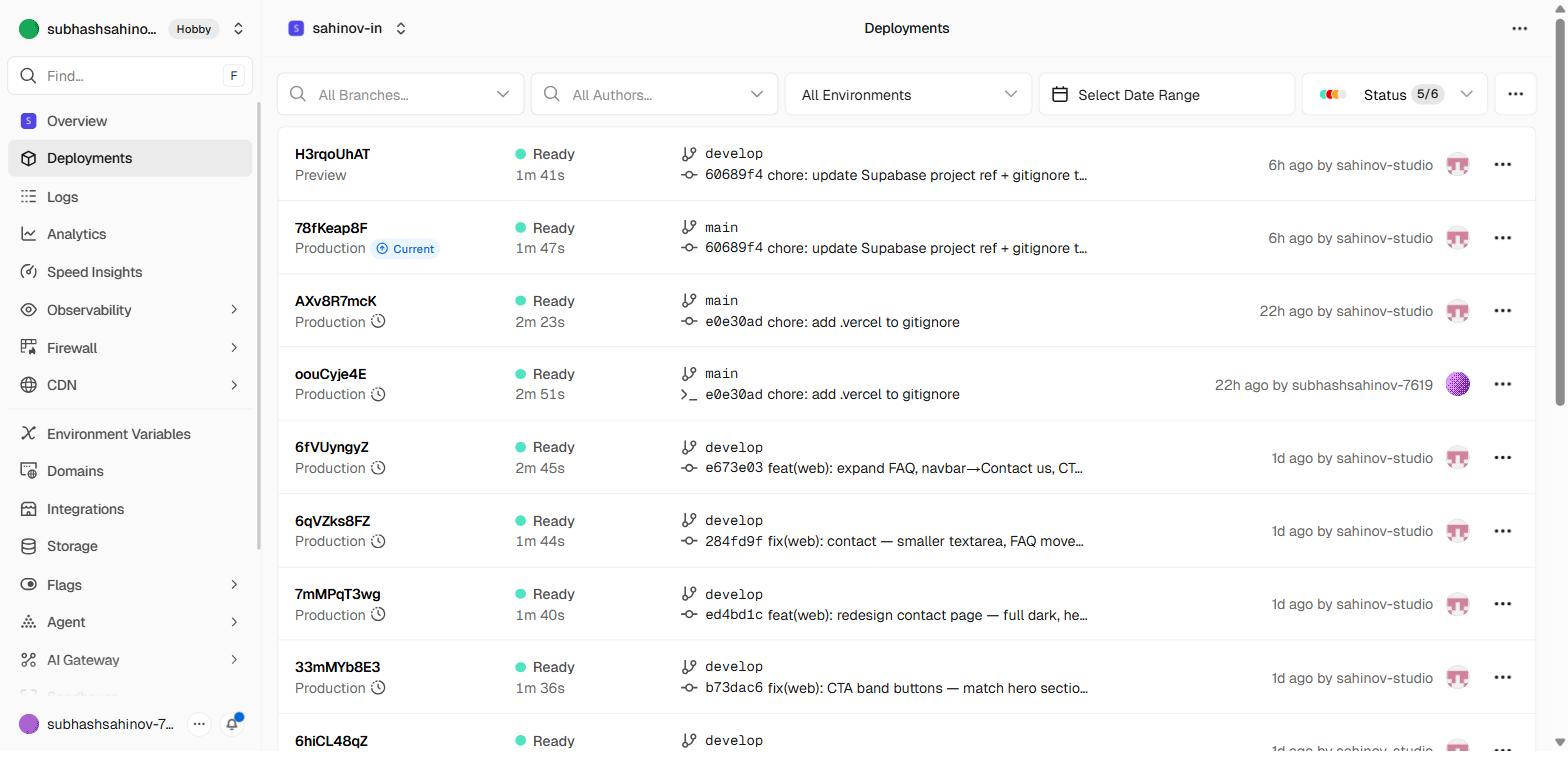 The Vercel deployments list — as DevOps hat, you monitor this after every push to confirm the build passed and the live site updated.
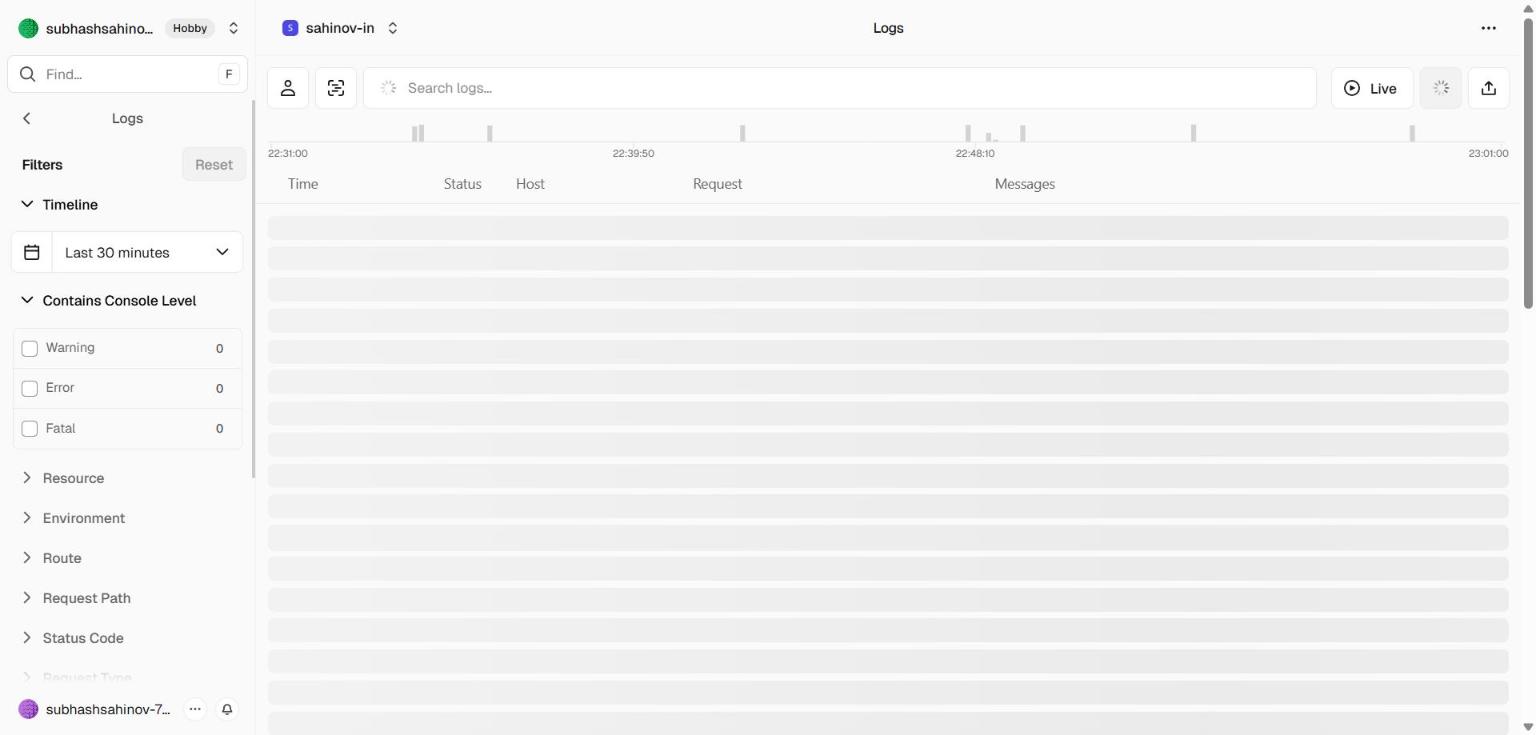 Runtime logs in Vercel — where you look first when a user reports something is broken in production.
The "Why First" Scenario
"You spend the weekend building the fee payment feature. Monday morning, you manually copy files to the server. You forget to include one updated file. The payment flow breaks in production. A real parent tries to pay their child's fees, their payment processes, but the fee record is never created. They were charged and got nothing."
This is a deployment failure. The DevOps role exists to make this scenario impossible — or at minimum, detectable within minutes and instantly reversible.
With proper DevOps:
- You push code to GitHub
- Automated checks run (linting, type checking, tests)
- If all checks pass, Vercel automatically builds and deploys
- If any check fails, deployment stops — nothing broken reaches production
- If something goes wrong after deploy, you roll back to the previous version in 30 seconds
- Sentry alerts you within 60 seconds if any user encounters an error
No manual file copying. No "I forgot that file." No discovering at 9am that production has been broken since midnight.
The Four Environments
Every professional project has (at minimum) two environments. Understanding the distinction is fundamental to not accidentally breaking production.
| Environment | What it is | Who uses it | Connected to |
|---|---|---|---|
| Local (your machine) | Your laptop, for active development | You only | Local or test database |
| Staging | A live copy of the app, identical to production | You + client for testing | Staging database with test data |
| Production | The real, live app | Real users | Real database with real data |
The cardinal rule: Never test in production. Never develop directly against the production database.
The environment variable system enforces this:
The code is identical. The environment decides which database it connects to.
Never commit .env files to Git. Your database keys, payment API keys, and any other secrets in your .env file must never be pushed to GitHub — even to a private repository. Once a secret is in Git history, it is permanently compromised, even if you delete it later. Add .env and .env.local to your .gitignore file before your first commit. This is non-negotiable.
Git: The Time Machine
Git is the version control system that makes everything else possible. The Excel analogy: Git is Track Changes + Version History + shared network drive, combined — but for code.
| Git concept | What it means | Excel analogy |
|---|---|---|
| Repository (repo) | The folder containing your project and its complete history | The Excel file with all its change history |
| Commit | A saved checkpoint — a snapshot of the code at this moment | A saved version with a description of what changed |
| Branch | A parallel copy of the code to work on a feature without affecting the main version | A duplicate sheet you work on before replacing the original |
| Push | Send your local commits to GitHub | Upload to Google Drive so others can see it |
| Pull | Download the latest version from GitHub | Sync from Google Drive to get others' changes |
| Merge | Combine changes from a branch back into the main version | Paste changes from the working sheet into the master |
Why commits are like insurance:
If your app works perfectly today and you break something tomorrow, git checkout returns you to today's working code in seconds. No backup files, no "before.xlsx" copies, no praying you saved it.
This is why we commit after every meaningful unit of work — not just at the end of the day, not just when deploying. Small, frequent commits give you fine-grained control over exactly what you can undo.
When You Are in This Role
Put on the DevOps hat:
- When you are setting up a new project (Git init, Vercel connection, environment variables)
- When you are pushing code to GitHub
- When you are deploying a new version to production
- When you are investigating a production error report
- When you are setting up environment variables for a new service (Sentry, Razorpay, etc.)
- When you are writing a GitHub Actions workflow for automated checks
- When something breaks in production and you need to roll back
Common Mistakes When You Skip This Role
"It works on my machine." The code runs perfectly locally. It breaks in production. Missing environment variable. Different Node.js version. Package not installed. The DevOps role defines what "the machine" means clearly enough that there is no gap between local and production.
Deploying broken code. You push a change that has a TypeScript error — you never ran the type checker. It compiles anyway (TypeScript errors in loose configs do not always block builds). Production has broken code. CI/CD catches this before deploy — but only if you set it up.
No rollback plan. A deploy breaks something. You have no way to go back to the previous version quickly. Users are affected while you scramble to fix it. Vercel keeps every deployment and you can promote any previous one to production in 30 seconds — but only if you know how.
Secrets in code. The Razorpay key is in the React component "for now." It gets committed to GitHub. It gets exposed. Payment fraud follows. Secrets belong in environment variables, stored in the deployment platform (Vercel), never in code.
Ignoring errors in production. The app is live. Users encounter errors. Nobody told you. You find out from a frustrated client two weeks later. Sentry catches errors in production and sends you an alert within minutes — but only if you set it up.
How Claude Code Helps in This Role
Set up a new project:
"Set up a new React + Vite project with: GitHub repository initialized, Vercel deployment connected, Supabase environment variables configured, Sentry error monitoring integrated, and a basic GitHub Actions workflow that runs lint and type check on every PR."
Write a deployment checklist:
"Create a pre-deployment checklist for pushing a new feature to production. Include: environment variable verification, type checking, build test, database migration confirmation, and rollback procedure."
Write a GitHub Actions workflow:
"Write a GitHub Actions CI workflow that: on every pull request, runs ESLint, TypeScript type checking, and the production build. Fails the PR check if any of these fail."
Debug a production issue:
"My Vercel deployment is failing with this error: [paste error]. What is the likely cause and how do I fix it?"
Set up Sentry monitoring:
"Add Sentry error monitoring to my Vite + React app. Configure it so: it only activates in production (not development), captures React component errors with the full component tree, and sends alerts to my email when a new error type appears."
How to Switch Into This Role
Before any deployment — even to staging — say:
"I am about to put this in front of real users. Or the people who will be real users. I am responsible for what they experience. Is there anything in this deployment that could break something, expose a secret, or lose data?"
Use this pre-deployment checklist mentally:
- Did I run the type checker? (
npx tsc --noEmit) - Does the build succeed? (
npm run build) - Are all environment variables set in Vercel?
- Have I committed everything? (
git statusshould be clean) - If this breaks, how do I roll back? (Know the answer before you deploy)
Exercise
Right now — before you have built anything — go through this setup sequence for your first project:
When you have done this, you will have:
- A working CI/CD pipeline (code → GitHub → Vercel → live)
- A URL you can share with anyone
- Proof that you can deploy
Everything you build from this point goes through the same pipeline. The DevOps infrastructure is set up once and then it works silently in the background — which is exactly how good infrastructure should work.