Scaffold the Next.js Project
From empty folder to working dev server to deployed-to-Vercel — the first 60 minutes of Project 2.
By the end of this page you will have:
- A Next.js project on your machine running at
localhost:3000 - The same project on GitHub
- The same project deployed to Vercel with a live URL like
your-school.vercel.app
You will write almost no code yet. This is the wiring step.
1. Create the Project
Open VS Code. Open a terminal (Ctrl+`). Navigate to a folder where you keep code (something like S:\Projects or C:\Users\You\Code).
Pick a project name. We will use aurora-school in the examples — replace with your school's slug (lowercase, no spaces, dashes).
When it asks questions, answer:
| Question | Answer |
|---|---|
| Would you like to use TypeScript? | Yes |
| Would you like to use ESLint? | Yes |
| Would you like to use Tailwind CSS? | Yes |
Would you like your code inside a src/ directory? | Yes |
| Would you like to use App Router? | Yes |
Would you like to use Turbopack for next dev? | Yes |
| Customize the default import alias? | No |
Wait 60 seconds. The installer downloads ~300 MB.
When it finishes, change into the folder:
2. Open in VS Code
VS Code opens. You'll see something like:
Don't worry about understanding every file yet. We'll cover them in Structure (next page).
3. Start the Dev Server
In the VS Code terminal:
You should see:
Open http://localhost:3000 in Chrome. You see the default Next.js welcome page.
That's the cycle. Edit a file → save → browser refreshes automatically. This is the loop you'll be in for the next 2 weeks.
4. Initialize Git
In a separate VS Code terminal (click the + icon to open a second):
You should see something like "15 files changed, 5234 insertions(+)". Run git status to confirm nothing is left uncommitted.
.env shows up in git status, something is wrong — .env should be in .gitignore by default. Never commit a .env file. If yours has secrets in it and you commit them, rotate every key immediately.5. Push to GitHub
Open github.com/new in your browser.
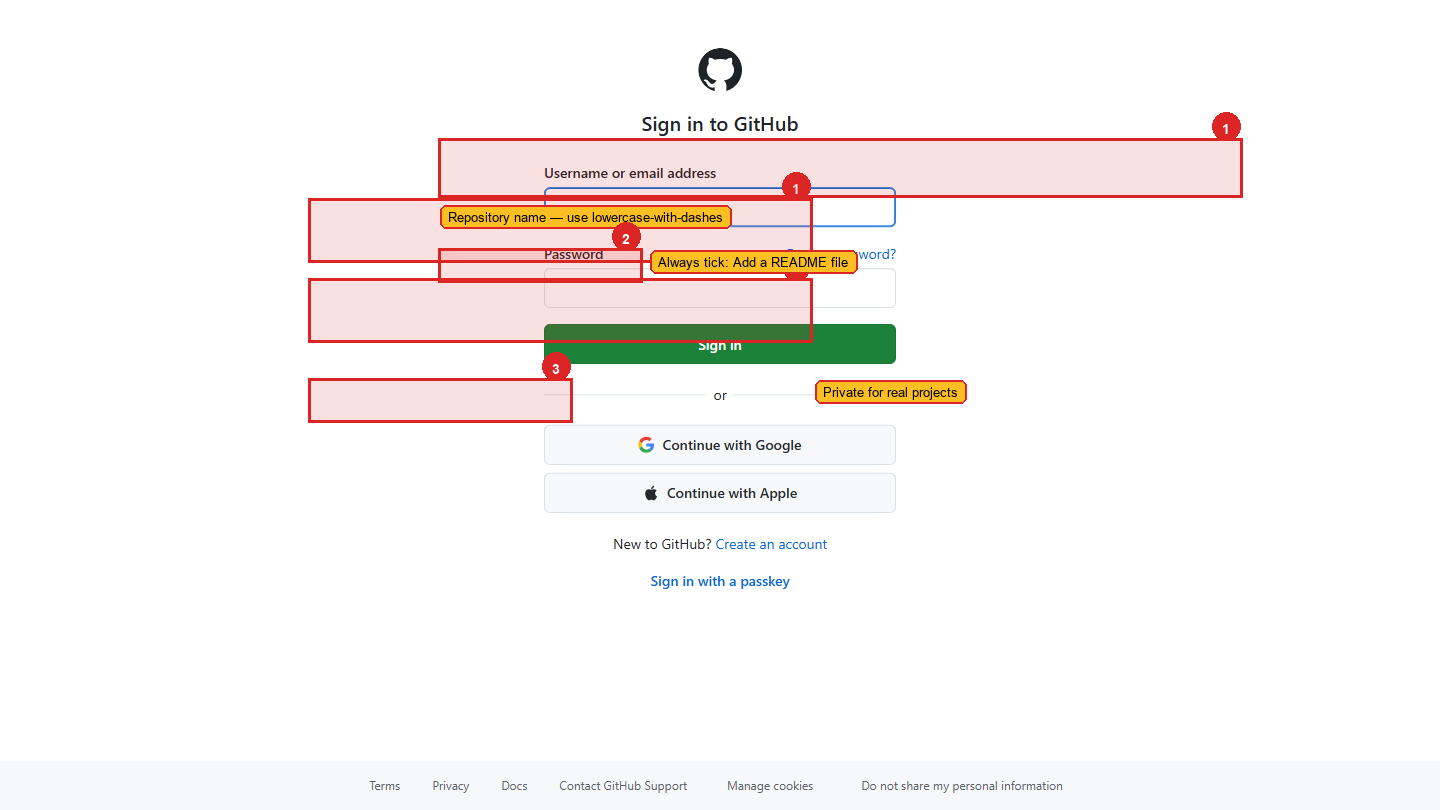
| Field | Value |
|---|---|
| Repository name | aurora-school (match your local folder name) |
| Description | "Public school landing site — Project 2 of Sahinov training" |
| Public/Private | Private until you're ready to share publicly |
| Initialize with README | No (we already have files locally) |
| Add .gitignore | No |
| Add a license | No |
Click "Create repository."
GitHub shows you a set of commands to run. Copy the ones under "…or push an existing repository from the command line". They look like:
Paste those into your VS Code terminal. Hit enter.
When you refresh the GitHub page, you should see your code.
6. Deploy to Vercel
Open vercel.com/new in a browser.
Sign in with the same GitHub account if you haven't.
You should see your aurora-school repository listed. Click "Import."
Vercel asks a few configuration questions. Accept all defaults — Next.js projects work out of the box on Vercel.
Click "Deploy."
Wait 60-90 seconds. You'll see build logs scrolling.
When it finishes, Vercel shows you a deployed URL like:
Open it. You see the same Next.js welcome page that runs on localhost:3000, now on the public internet.
This is the production server. From now on, every time you git push to main, Vercel rebuilds and redeploys automatically. You don't need to click anything — push is the deploy.
7. Verify the Cycle
Back in VS Code, open src/app/page.tsx. Find the line that says Get started by editing or similar (it changes between Next versions).
Change one word — say, replace "Welcome to" with "Hello from Aurora Public School."
Save the file.
localhost:3000updates instantly.- Now:
git add . && git commit -m "test change" && git push - Wait 60-90 seconds.
- Refresh
https://aurora-school.vercel.app. - The same change shows up there.
That round-trip — edit → save → see locally → commit → push → see on the public internet — is the entire development cycle for the rest of this project. Get comfortable with it.
8. Save Credentials
Open your VaultMate database. Add three entries under a new project called "Aurora School" (or whatever your school is called):
| Title | Username | Secret | Category |
|---|---|---|---|
| GitHub repo URL | — | https://github.com/yourusername/aurora-school | Other |
| Vercel project URL | — | https://vercel.com/yourusername/aurora-school | Other |
| Production URL | — | https://aurora-school.vercel.app | Other |
You don't need passwords here — these are public URLs. But keeping all the project links in VaultMate means you find them again instantly six months from now.
9. What You Have Now
| Status | |
|---|---|
| Next.js project on your machine | ✓ |
Local dev server at localhost:3000 | ✓ |
| Code on GitHub | ✓ |
| Live URL on Vercel | ✓ |
git push automatically deploys | ✓ |
| Content of the site | The default Next.js welcome page — for now |
The infrastructure is done. Everything from here is content and design.
The next page walks through the project structure — every file and folder, what it does, and which you'll touch most.