Access Tokens
Creating Vercel access tokens for the CLI and CI/CD automation — when you need them and how to use them safely.
Most of the time you work with Vercel through the browser dashboard. But two scenarios require a token instead of a browser login: running the Vercel CLI on your machine, and automating deployments from a GitHub Actions pipeline. In both cases, Vercel needs to know who you are without opening a browser window.
An access token is how you prove your identity to Vercel from the command line or from automated scripts.
When You Need a Token
| Scenario | Token required? |
|---|---|
| Deploying from the Vercel dashboard | No — you're already logged in |
Running vercel CLI on your machine | Yes — first-time login |
| GitHub Actions automated deployment | Yes — stored as a secret |
| Vercel CLI in a CI/CD environment | Yes — no browser available |
| Checking project status from a script | Yes |
If you are only deploying through the dashboard and your GitHub push-to-deploy integration is working, you may never need a token. The push-to-deploy flow (GitHub → Vercel webhook) does not use personal access tokens — it uses the GitHub App connection you set up during account creation.
Creating an Access Token
Go to Account Settings
In the Vercel dashboard, click your profile icon in the top-right corner. Select Account Settings from the dropdown.
Open the Tokens page
In the left sidebar under Account Settings, click Tokens.
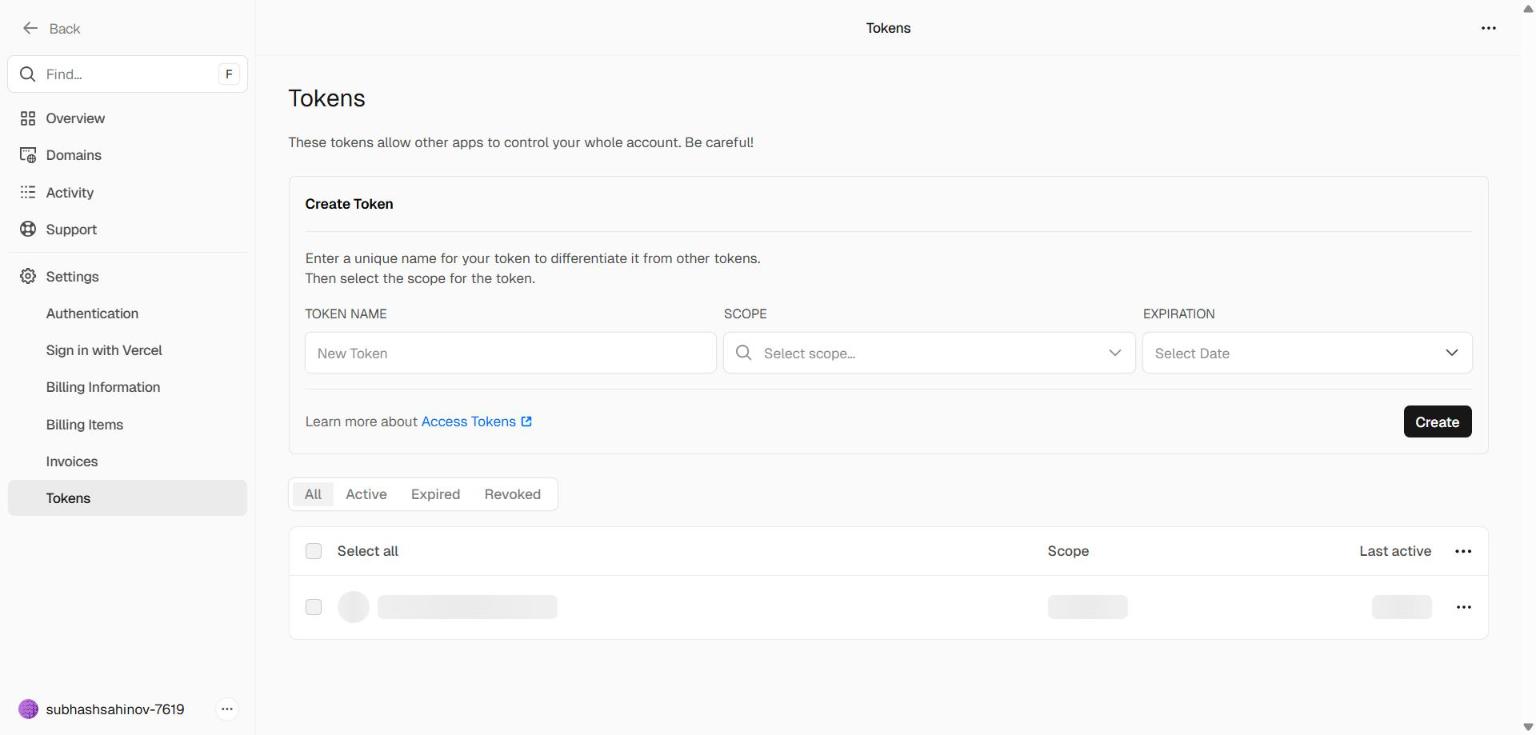 The Tokens page in Vercel Account Settings. Existing tokens are listed with their name, scope, creation date, and expiry. The "Create" button at the top right opens the token creation dialog.
Create a new token
Click the Create button (top right of the Tokens page). A dialog will appear.
Fill in:
| Field | What to enter |
|---|---|
| Token name | Something descriptive — cli-laptop, github-actions-aurora-school, vercel-cli-dev |
| Scope | Your personal account (not a specific team unless you have one) |
| Expiration | Choose an expiry — 90 days is a reasonable default; "No expiration" is convenient but a security risk |
Click Create.
Copy the token immediately
Vercel shows the token value exactly once — the moment it is created. Once you close that dialog, the full value is gone. Vercel only stores a hash; it cannot show you the token again.
Copy the token and paste it somewhere safe before closing the dialog. If you close without copying, you must delete the token and create a new one.
Never commit a token to Git. A token in your codebase — even in a private repository — is a security risk. Anyone with repository access can use it to deploy or delete your projects. Always store tokens in environment variables or your password manager, never in code.
Using the Token with Vercel CLI
The Vercel CLI is a command-line tool that lets you deploy projects, manage environment variables, and pull logs without opening a browser. You use it in your terminal.
Install the CLI (one time):
Login with your token:
After this, the CLI is authenticated. You can run vercel in any project directory to deploy it, or vercel env pull to sync environment variables to a local .env file.
Alternative — set the token as an environment variable:
If you're running the CLI in a script or CI environment, set VERCEL_TOKEN in the environment instead of passing --token on every command:
Using the Token in GitHub Actions
When GitHub Actions runs a deployment, there is no browser. The workflow authenticates by reading a secret you've stored in your GitHub repository settings.
Step 1 — Add the token as a GitHub secret:
- Go to your GitHub repository
- Settings → Secrets and variables → Actions
- Click New repository secret
- Name:
VERCEL_TOKEN - Value: paste your Vercel token
- Click Add secret
You also need your Vercel Project ID and Org ID (both found in your project's .vercel/project.json after running vercel once locally):
- Secret name:
VERCEL_ORG_ID→ value fromorgId - Secret name:
VERCEL_PROJECT_ID→ value fromprojectId
Step 2 — Reference the secret in your workflow:
GitHub Actions vs. push-to-deploy: Most projects in this workshop use Vercel's built-in GitHub integration — push to main, Vercel deploys automatically. GitHub Actions tokens are for advanced workflows: deploying only after tests pass, deploying to staging first, or running database migrations before deploying. You don't need GitHub Actions for basic projects.
Token Management
Revoking a token
If a token is compromised, or you no longer need it, delete it immediately from the Tokens page. Deleted tokens stop working instantly — any script or CLI session using that token will fail with an authentication error.
Rotating tokens
For long-lived tokens used in CI/CD pipelines, create a replacement token first, update all the places that use it, then delete the old one. Never delete before replacing — that order causes deployment downtime.
Token naming convention
Name tokens to describe where they're used:
cli-laptop-dev— Vercel CLI on your development machinegithub-actions-aurora-school— GitHub Actions for the Aurora Public School projectgithub-actions-sahinov-web— GitHub Actions for the Sahinov website
When you see a token in the list six months later, the name tells you whether it's still needed.
Common Mistakes
Mistake 1: Storing the token in .env and committing it.
The .env file must be in .gitignore. If it's not, your token goes to GitHub and anyone who forks your repo can deploy or delete your projects.
Mistake 2: Using "No expiration" for everything. A token with no expiry that leaks is permanently compromised until you notice and revoke it. Short-lived tokens (90 days) limit the blast radius of a leak.
Mistake 3: Using one token for everything. Create separate tokens for separate purposes. When you rotate the GitHub Actions token, you don't want to break your local CLI session at the same time.
Mistake 4: Losing the token value before saving it. Vercel shows the token exactly once. If you close the dialog, you must create a new token. This is by design — Vercel cannot retrieve a token it's already shown you.