Your First Project
Create your first Lovable app from scratch — from clicking New Project to watching your app generate in real time.
The Scenario
You have just taken on a new small business client — a freelance tax consultant who manages about 40 clients independently. She tracks everything in an Excel sheet: client name, PAN, last filing date, next deadline, fees billed, fees collected.
The problem: the sheet has grown unwieldy, she cannot quickly see which clients have upcoming deadlines this month, and she forgets to follow up on unpaid invoices.
She needs a simple client tracker. Nothing complicated. Just a clean way to see her clients, their status, and what needs attention.
This is exactly the kind of thing you will build in your first Lovable session.
Creating a New Project
Log In and Click New Project
Open lovable.dev and log in. On the dashboard, click the New Project button. It is prominently placed — usually a large button in the center of the screen or at the top right.
You will be taken to a new project setup screen. The centerpiece of this screen is a text input area — a large, open box waiting for you to describe what you want to build.
Write Your First Prompt
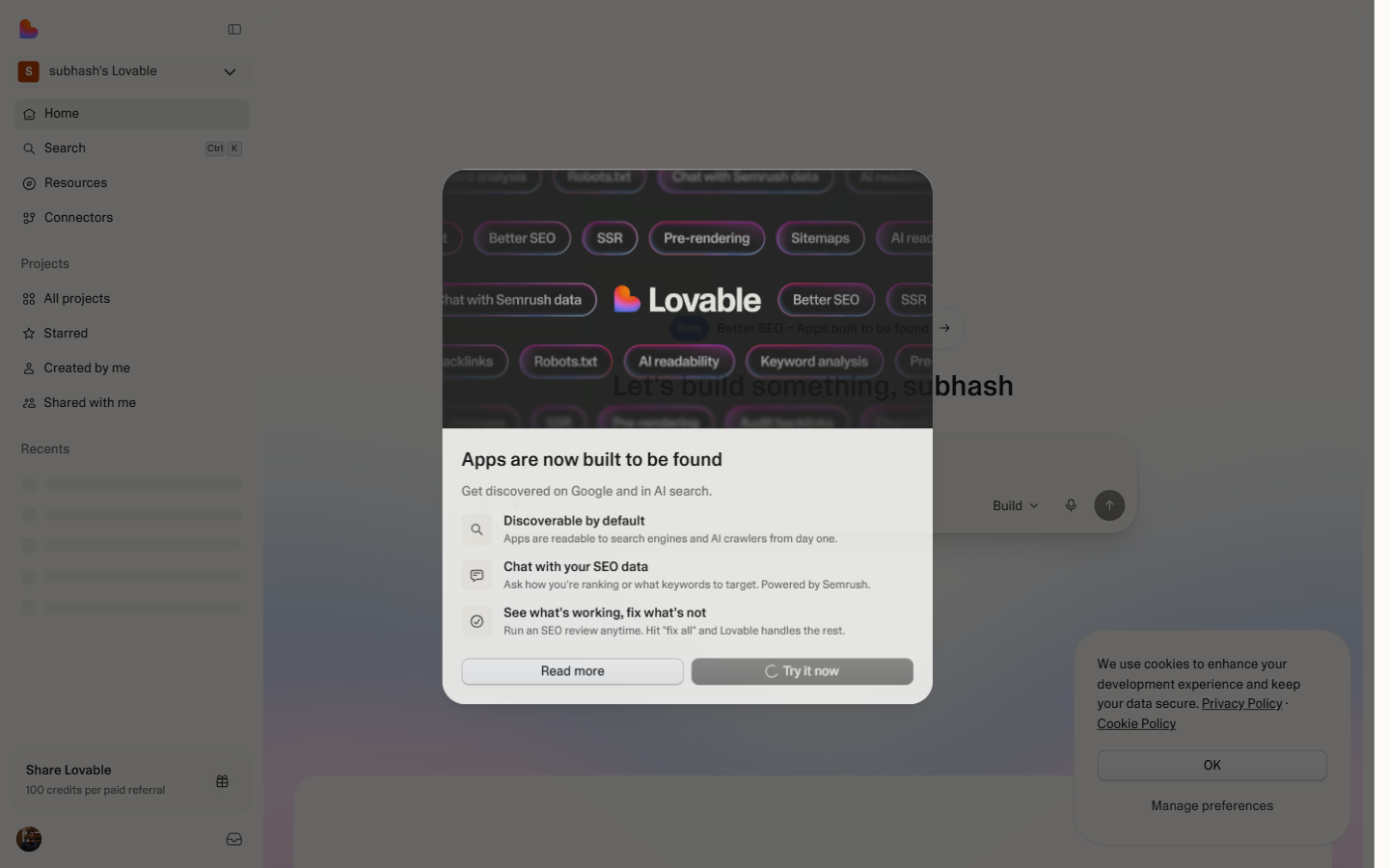 The new project screen. The large text input at the centre is where you describe your app in plain English. Specificity in this prompt is the single biggest factor in the quality of what Lovable generates.
This text box is where the magic happens. You are going to describe your app in plain English, exactly the way you would explain it to a colleague.
For our tax consultant client tracker, type something like:
"Build a client management dashboard for a tax consultant. It should have a table showing all clients with columns for: client name, PAN number, service type (ITR filing, GST, TDS), next deadline, fees amount, fees paid (yes/no), and status (active/completed/follow-up needed). Include a summary at the top showing total clients, total fees billed this month, and how many clients have deadlines in the next 7 days. The design should look clean and professional — use a white background with navy blue and green accents."
This is a good first prompt. It is specific about the data fields, the layout, and the visual style. We will explore prompting in depth in the next section — for now, just type something similar and click the button to generate.
The generate button might be labeled Create, Build, Generate, or show as an arrow icon beside the text box. Click it when you are ready.
Watch It Generate
This is one of the most satisfying moments in modern software development: watching an AI build a real application in front of you.
After you submit your prompt, Lovable starts working. You will see a progress indicator — some text describing what it is building, sometimes a code view showing the files being created. This typically takes between 15 and 60 seconds depending on the complexity of what you asked for.
What is happening behind the scenes: Lovable is writing real React code — the same code a developer would write. It is creating components for your table, your summary cards, the navigation. It is generating the CSS styling. It is wiring everything together.
You do not need to understand any of that. You just need to watch and wait.
See the Preview
When generation is complete, your screen splits into two sections:
Left side — the editor/chat panel: This is where you can type follow-up instructions to change things. Think of it as a conversation — Lovable built a first version, now you can direct it to change what you do not like.
Right side — the live preview: This is your actual app, running live. You can click buttons, scroll through the table, interact with it exactly as your client would. It is not a picture of an app — it is the real thing rendering in real time.
Spend a moment here. Look at what it built. Notice where it got things right (the table structure, the summary cards) and where it might have made assumptions (maybe it added placeholder data, or chose colors you do not love).
Verification: If you can see a live preview of your app on the right side of the screen and a chat/edit panel on the left, your first project has been generated successfully.
Understanding the Interface
Now that your project is generated, let us understand the workspace you are looking at.
The Preview Pane (Right Side)
The preview shows your app exactly as a user would see it in a browser. It updates every time you make a change. What you see is what your users get.
Inside the preview, you can:
- Click through the app to test flows
- Resize the preview to see how it looks on mobile (look for a mobile/tablet toggle)
- Open the app in a full browser tab using a button near the top
The preview is not a simulation — it is live code rendering. If something looks wrong here, it is genuinely wrong in the app.
The Edit Sidebar (Left Side)
This is your conversation interface with Lovable. It works exactly like a chat:
- Type what you want to change
- Press enter or click the send button
- Lovable modifies the app and the preview updates
You will also see the history of what was built — each change you make is logged as a message in the conversation.
The Top Bar
The top of the screen typically shows:
- Your project name (click to rename it)
- A Share or Publish button for making the app public
- A Code or Export option for downloading the source code
- Navigation back to your projects list
Requesting Changes in Natural Language
This is where Lovable really shines. If you do not like something, you just say so.
Here are examples of change requests that work well:
Changing visual design:
"Change the table header background color to dark navy blue with white text."
Adding functionality:
"Add a search box above the table that filters clients by name as you type."
Changing layout:
"Move the summary cards to a horizontal row at the top instead of stacked vertically."
Adding a new section:
"Add a 'deadlines this week' panel on the right side showing only clients whose deadline is within 7 days, sorted by earliest first."
Fixing something that is wrong:
"The fees column is showing numbers without the rupee symbol. Add ₹ before every amount."
Adjusting data:
"Replace the placeholder client names with more realistic Indian CA firm client names."
Each of these is a natural English instruction. Lovable reads it, modifies the code, and the preview updates immediately. You do not write a single line of code.
What the Generated Code Looks Like
Even if you have no intention of writing code yourself, it is worth peeking at the code Lovable generates. Here is why:
Every professional has looked at a financial statement and thought, "I may not have prepared this, but I can read it." Code is the same. You do not need to write it, but being able to read it and roughly understand what each section does is valuable.
To see the code:
- Look for a Code tab or button in the left panel
- Click it and you will see the actual React files Lovable wrote
You will see file names like App.tsx, ClientTable.tsx, Dashboard.tsx. Inside each file is the code that creates what you see in the preview. The naming is usually clear enough to understand which file controls which part of the screen.
Do not worry if the code looks unfamiliar right now. As you progress through this training, more and more of it will start making sense. For now, just notice that it exists and that it is real code — not some proprietary format locked inside Lovable.
Saving Your Work
Lovable automatically saves your project. Every change you make is recorded. You do not need to hit a save button.
Your project will appear in your dashboard whenever you log back in, exactly as you left it.
If you want to preserve a specific state before trying something experimental, look for a Restore or Version history option — Lovable keeps a history of changes so you can roll back to an earlier version if something goes wrong.
Practice Exercise
Before moving to the next section, try building one of these on your own as a 15-minute exercise:
Option A — GST Return Tracker:
"Build a GST return tracker for a CA firm. Show a table with client name, GSTIN, return type (GSTR-1, GSTR-3B, GSTR-9), due date, filed date, and status (filed/pending/overdue). Add a color-coded status column — green for filed, yellow for pending, red for overdue. Include a header showing total returns due this month and total filed."
Option B — Expense Approval Portal:
"Build an expense approval portal for a small company. Show a table of expense claims with: employee name, department, expense description, amount, date submitted, and approval status (pending/approved/rejected). Include approve and reject buttons on each row. Add a summary showing total pending expenses and total approved this month."
Option C — Your Own Idea: Think of a real tracking problem in your work or a client's work. Describe it as specifically as you can and build it.
Verification after this section: You have successfully built your first Lovable project if:
- A project appears in your Lovable dashboard
- The app is visible in the preview pane
- You have made at least one change request and seen the preview update
- The app roughly matches what you asked for in your prompt