Maps JavaScript API
Embedding an interactive Google Map in your React web app and React Native mobile app — markers, real-time partner tracking, and the correct library for each platform.
The "Why First" Scenario
The Aurora Public School customer app shows a live map when a cleaning partner is on their way. A blue pin marks the customer's address. A moving pin shows the partner's current location, updating every 30 seconds as they travel. The customer can see exactly where their partner is and how far away they are — without making a phone call, without sending a message.
The partner app shows the assigned customer's address on a map the moment a job is accepted — tap to open Google Maps navigation. No copying and pasting addresses.
Both of these require the Maps JavaScript API. It is the technology that puts a real Google Map — with all of its layers, its satellite view, its real-time traffic — inside your app.
This is not a Google Maps shortcut icon that opens the Maps app. This is Google Maps running inside your app, controlled by your code.
The Excel Analogy
Think of the Maps JavaScript API as embedding a live Excel chart from someone else's spreadsheet into your own presentation.
You didn't build the chart engine. You don't maintain the underlying data. You just specify: "I want a map, centred here, with a pin at this coordinate, zoomed to this level." Google renders it. You control the parameters.
The alternative — building your own map — would be like building Excel's charting engine from scratch before you could draw a bar chart. Nobody does that.
Your API Key
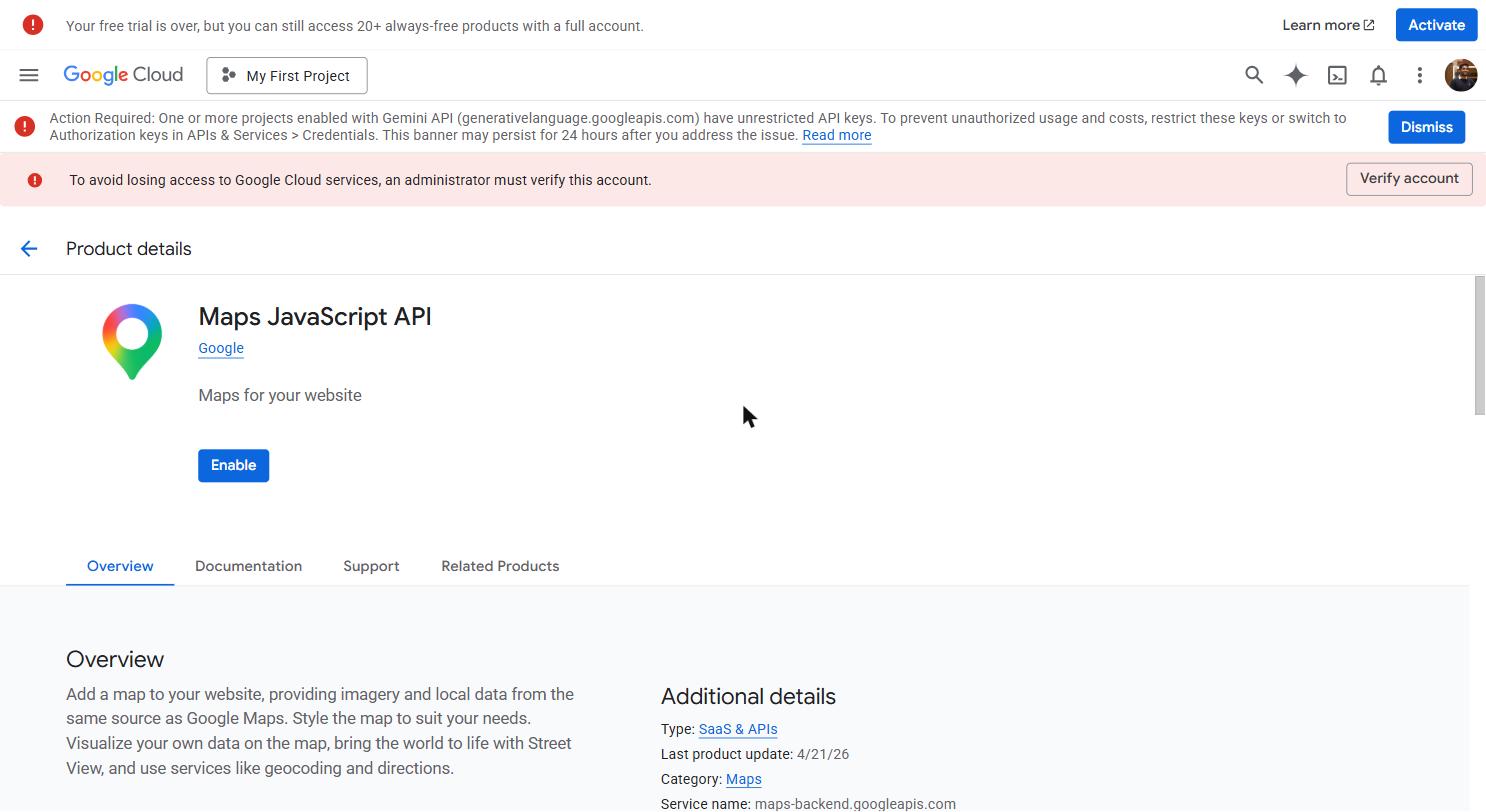 Maps JavaScript API overview page in Google Cloud Console — usage metrics, latency, error rate, and the "Manage" button to configure quotas. Bookmark this page during the Aurora Public School launch period.
The Maps JavaScript API uses the same API key you created in the Google Cloud setup section. You should have already:
- Created a Google Cloud project
- Enabled the "Maps JavaScript API" from APIs & Services → Library
- Created an API key from APIs & Services → Credentials
Your key looks like this: AIzaSyBxxxxxxxxxxxxxxxxxxxxxxxxxxxxxxxx
Store it in your project's environment file:
This key is visible in your frontend code — by design. Unlike your Supabase service role key or your Gemini API key, the Maps JavaScript API key is intentionally used in the browser and in the mobile app. Google expects this. But this means anyone can read the key from your app's source code.
The protection is not hiding the key — it is restricting the key to only work from your specific domains.
In Google Cloud Console → Credentials → click your API key → "Application restrictions":
- For web: select "HTTP referrers" and add your domains (
yourapp.vercel.app/*,yourdomain.com/*) - For mobile: select "Android apps" or "iOS apps" and add your app's bundle ID
A restricted key exposed in your code is safe. An unrestricted key is a billing risk — someone could use it to load maps on their own site at your expense.
Using Maps in a React Web App
For Next.js and Vite React projects, use the @vis.gl/react-google-maps library. It is the officially recommended React wrapper for the Maps JavaScript API.
Install it:
Basic map — display a map centred on Hyderabad:
APIProvider loads the Google Maps script once and makes it available to all child components. Map renders the interactive map. You do not need to add a <script> tag anywhere — the library handles that.
Adding a marker (a pin on the map):
Real-time partner tracking — a moving pin:
Cost optimisation — do not reload the map on every re-render. The APIProvider component should wrap your entire app (or at least a large section of it) — not be re-mounted every time a component re-renders. Place it in your root layout or a high-level wrapper. Each mount of APIProvider counts as a map load for billing purposes. One mount, no matter how many times the map updates its markers, counts as one load.
Using Maps in a React Native App (Expo)
For Expo React Native projects, the standard library is react-native-maps. It renders the native Maps SDK on each platform — Google Maps on Android, Apple Maps on iOS (with Google Maps available on iOS too).
Install it:
Configure Google Maps provider in app.json:
For iOS, add your Maps API key to expo.ios.config.googleMapsApiKey as well if you want Google Maps instead of Apple Maps.
Basic map component:
Key difference from web: React Native uses { latitude, longitude } while the web library uses { lat, lng }. This is a very common mistake when writing code that handles both platforms — watch the property names carefully.
Expo Go limitation: react-native-maps with the Google Maps provider requires a development build (not Expo Go) on iOS, because it needs native Google Maps SDK code compiled in. On Android with Expo Go, it often works. For the full experience on both platforms, build a development build using EAS Build. During training, Android is the primary test device — Google Maps works there with Expo Go.
What the Map Can Do (Beyond a Static Pin)
Once the basic map is rendering, the Maps JavaScript API gives you access to many more capabilities — all through the same library:
| Feature | How you use it |
|---|---|
| Custom marker icons | Pass a custom SVG or image URL to the Marker component's icon prop |
| Draw a route between two points | Use the Polyline component with an array of coordinates |
| Show traffic layer | Enable the traffic layer option on the Map component |
| Detect user clicks on the map | onClick handler on the Map component returns the clicked coordinates |
| Restrict map to a region | Set restriction on the Map component with a LatLngBounds |
| Custom map style (colour scheme) | Pass a styles array to Map — Google has a style generator at mapstyle.withgoogle.com |
You will not need all of these immediately. The basic map with markers covers everything in Phase 2 projects. These are here so you know the capability exists when a client asks.
Common Mistakes
Mistake 1: Mounting APIProvider inside a component that re-renders frequently.
Every time APIProvider mounts, it counts as a new map load. Keep it high in the component tree — in your layout, not in a card or list item.
Mistake 2: Forgetting to enable the API in Google Cloud Console.
The API key existing does not mean the API is active. You must enable "Maps JavaScript API" explicitly in APIs & Services → Library. A key without the API enabled returns a RefererNotAllowedMapError or similar.
Mistake 3: Not restricting the API key to your domains. An unrestricted key in frontend code can be copied and used by anyone. Always set HTTP referrer restrictions before deploying to production.
Mistake 4: Using { latitude, longitude } on web or { lat, lng } on mobile.
The two libraries use different coordinate property names. If your map shows no pins (and no errors), this is almost always the cause.